Remote MCP servers
A remote server is an that Arcade does not host: one your team already runs, one a vendor hosts for you, or one from an Arcade partner.
You register it once, to a — not to a gateway. From that point its tools are part of the project’s catalog alongside Arcade’s own, and every gateway in the project can select from them, the Playground can call them, and the SDKs can execute them. Register a server globally instead and every project in the organization can use it the same way.
This guide covers registering the server, configuring its connection and auth, and using its .
Looking to write new rather than connect an existing server? See Build an MCP server instead. This page is for servers that already exist and are reachable over HTTP.
Outcomes
Register a remote server to a and use its anywhere in that project.
You will Learn
- Register a remote server to a
- Configure advanced connection settings
- Use the server’s in gateways, the Playground, and the SDKs
Prerequisites
- An Arcade
- A remote server URL that Arcade can reach
- Access to any auth credentials your server requires
Types of MCP servers in Arcade
Every server in your appears in the same Servers dashboard , sorted along two axes.
Who runs it, shown as the Type badge and the URI column:
URI | Type | |
|---|---|---|
Arcade Native — a server Arcade hosts for you, either pre-built by Arcade or deployed with arcade deploy | Arcade Hosted | HTTP |
| Remote — a server you or a vendor hosts, reached at a URL you supply | the server URL | MCP |
Where it’s visible, shown as the scope badge:
| Available to | |
|---|---|
Project | Every gateway, Playground session, and SDK call in the project it was added to |
Global | All organizations, projects, and accounts |
Arcade’s pre-built catalog arrives as Global servers. Servers you register yourself — Arcade Native or remote — are scoped to a by default. Scope is set on the server, not on the gateway, which is why one registration serves every gateway in that scope.
Whichever combination a server is, it gets the same treatment: connection timeout and retry settings, an Active / Healthy / Pending Auth status, an enable toggle, a picker, Logs, and the same audit trail. A remote server is a peer of an Arcade-hosted one, not an attachment to it.
Add the remote server to your project
Open the MCP servers page
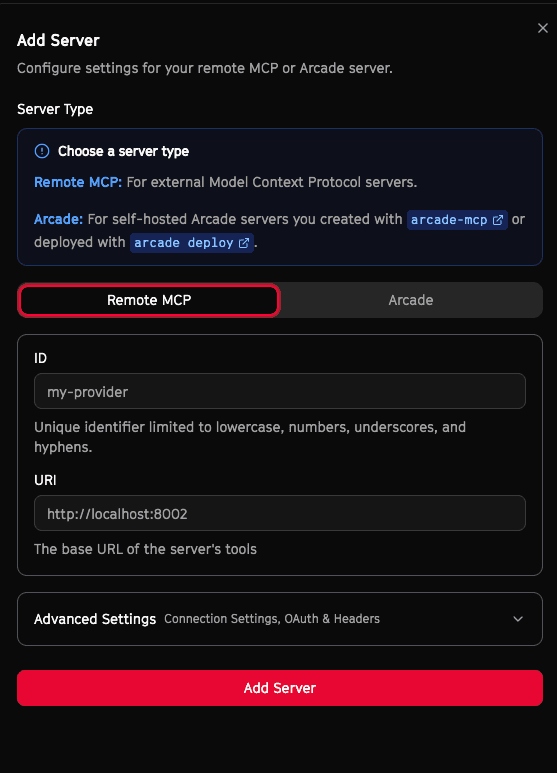
Go to the MCP servers dashboard for your and click Add Server.
Enter the required fields
Choose Remote as the server type, then fill in the two required fields:
- ID: A unique, human-readable identifier (for example,
render-mcp-server) - URI: The public URL for your server (for example,
https://mcp.render.com/mcp)
Select Arcade instead of Remote if you are registering a server that Arcade or your own infrastructure hosts. See Hybrid MCP servers for that flow.
Use the MCP Debugger to verify the remote server’s compliance before adding it to Arcade.
Save and confirm the connection
Create the server and confirm that Arcade lists the server tools in your project. If the remote server requires authentication, Arcade prompts you to complete the OAuth flow.
Authorize as an admin user with the broadest access on the remote server. Your credentials determine the tool list Arcade discovers, and therefore what you can choose from when curating gateways. See Who authenticates, and when.
Don’t refresh the Arcade dashboard while an authorization prompt is open. Refreshing mid-flow can leave a stale, incomplete authorization behind instead of cleanly restarting it. If a connection seems stuck, close the prompt, reload the page, and start a single fresh attempt.
Who authenticates, and when
Authentication to a remote server happens twice, with different credentials each time. This is the behavior that most often surprises people, so it’s worth being precise about.
At setup, the admin authenticates. When you register the server, Arcade uses your credentials to fetch the server’s list. That list is what you see in the Playground and what you pick from in a gateway’s tool picker. Authorize as a with the broadest access on the remote server, or tools your team needs will simply never appear as options.
At runtime, each end authenticates. When an end user’s first calls a on that server, Arcade runs the OAuth flow against the remote server for that user and stores their tokens separately. Arcade then re-resolves the tool list for them individually.
The consequence: the admin’s list is the superset you curate from, not the set anyone actually gets. A tool the end user’s own can’t access is not available to them at runtime, even if you selected it in the gateway and even though you could see it at setup. Curation narrows the admin’s list; each ’s own permissions narrow it again.
This is what you want — the remote server’s own access controls keep applying per user, and an admin registering a server does not silently lend their access to everyone. But it means a appearing in your gateway is not a guarantee that a given end can call it.
Configure advanced settings
Remote servers often require more than a URL. Use Advanced settings to configure connection, OAuth, and header details.
Common settings include:
- Connection settings: Configure timeout and retry values for calls.
- OAuth2 authorization (optional): Add client ID and client secret, and set an authorization URL if it differs from the server URI. Use the provided redirect URI when configuring your OAuth app.
- Custom headers: Add headers such as
AuthorizationorX-API-Keyand reference secrets with${secret:NAME}. - Header secrets: Store API tokens or passwords and reference them in headers.

Some remote servers need provider-specific setup beyond these generic settings. See Connect a Salesforce Hosted MCP Server for a fully worked example.
Where the server’s tools become available
Registration is a one-time, -level act. You do not add a remote server to a gateway, and you do not repeat the setup per gateway. Once the server is registered, its are available everywhere in its scope:
- Every Gateway in the can select them in its picker. A project can have many gateways, each exposing a different subset of the same server.
- The Playground for the can call them, which is the fastest way to learn a ’s arguments.
- The Arcade SDKs can execute them by name, with no gateway involved.
If the server is registered globally rather than to a single , that scope widens to every project in the organization.
Select the tools in a gateway
Because you often don’t control which a remote server exposes, gateways are where you curate them: pick the tools you want and hide the rest, per gateway.
- Create or edit an Gateway in the MCP Gateways dashboard .
- Open Select and filter by your remote server name.
- Choose the you want to expose through the gateway.
Call remote tools from Arcade SDKs
Remote tools behave like any other Arcade . Try it out in the Playground first to learn any nuances about the name and arguments. Copy the tool name from the tool picker or tool catalog, then call it with the SDK.
Python
from arcade import Arcade

client = Arcade(api_key="ARCADE_API_KEY")

result = client.tools.execute(
    tool_name="render-mcp-server.get_key_value",
    input={"keyValueId": "foo-bar"},
    user_id="user-123",
)

print(result)Limitations and caveats
Remote servers must be reachable from Arcade and must support the Streamable HTTP(s) transport. If your server depends on non-HTTP transports, Arcade cannot proxy it.
- If the remote server is offline, gateway and SDK calls will fail until it is reachable again.
- Gateways only expose the tools you select, not every on the server.
- Arcade only supports tools from remote servers today. Prompts, resources, and sampling are not supported yet.